Payment Voucher Printing Software for UAE Businesses
Print a payment voucher for every cheque you issue, with your logo, automatic numbering, amount in words and signature lines.
- A4 payment voucher as a PDF
- Your logo, header and labels
- Automatic voucher numbering
- Amount in words written for you
Included in all plans, from AED 750. One-time payment for a 3-year licence. See plans
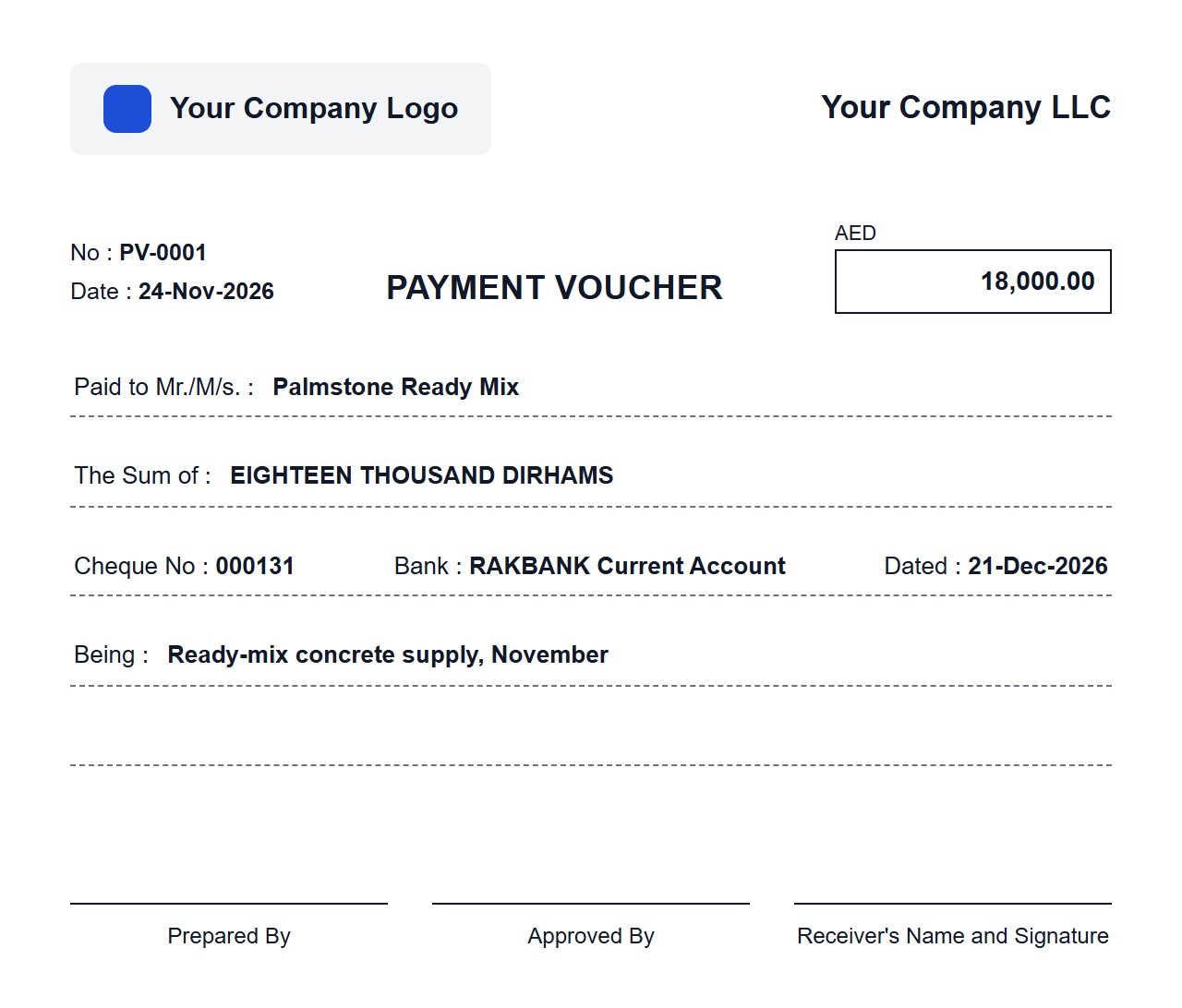
A payment voucher from EasyCheck, shown with sample data.
What Is a Payment Voucher?
A payment voucher is an internal document used to record payment details, including the payee, amount, date, purpose and authorisation. In EasyCheck, it is generated from a cheque record and can include the cheque number, bank, cheque date and signature lines. The payment details are filled from the cheque record, reducing duplicate entry.
What prints on the payment voucher
Company header and logo
Your logo and company name at the top of the voucher.
Voucher number and date
Use your own numbering prefix, such as PV-0001. Choose whether the voucher date uses the date of first print or the cheque date.
Paid to
The beneficiary on the cheque.
Amount in figures and words
An amount box with the currency, and the sum written out in words.
Cheque number, bank and date
Taken from the cheque record, so they are not typed again.
Narration
The purpose of the payment, taken from the cheque remarks.
Signature lines
Up to three, such as Prepared By, Approved By and Receiver.
Footer note
An optional note printed at the bottom of every voucher.
How to Print a Payment Voucher for a Cheque
Set it up once. After that, each voucher is one click from the cheque list.
- 1
Turn on Payment Voucher Printing
An Admin switches it on under Preferences, Feature Modules, then saves the preferences.
- 2
Design the voucher once
Open the voucher designer, set the numbering, logo, labels, fields and signature lines, and click Save design.
- 3
Click Print Voucher on a cheque
In Print Cheque, each cheque row has a Print Voucher button next to the cheque print button.
- 4
Print or save the PDF
The A4 payment voucher opens as a PDF, filled with that cheque’s details.
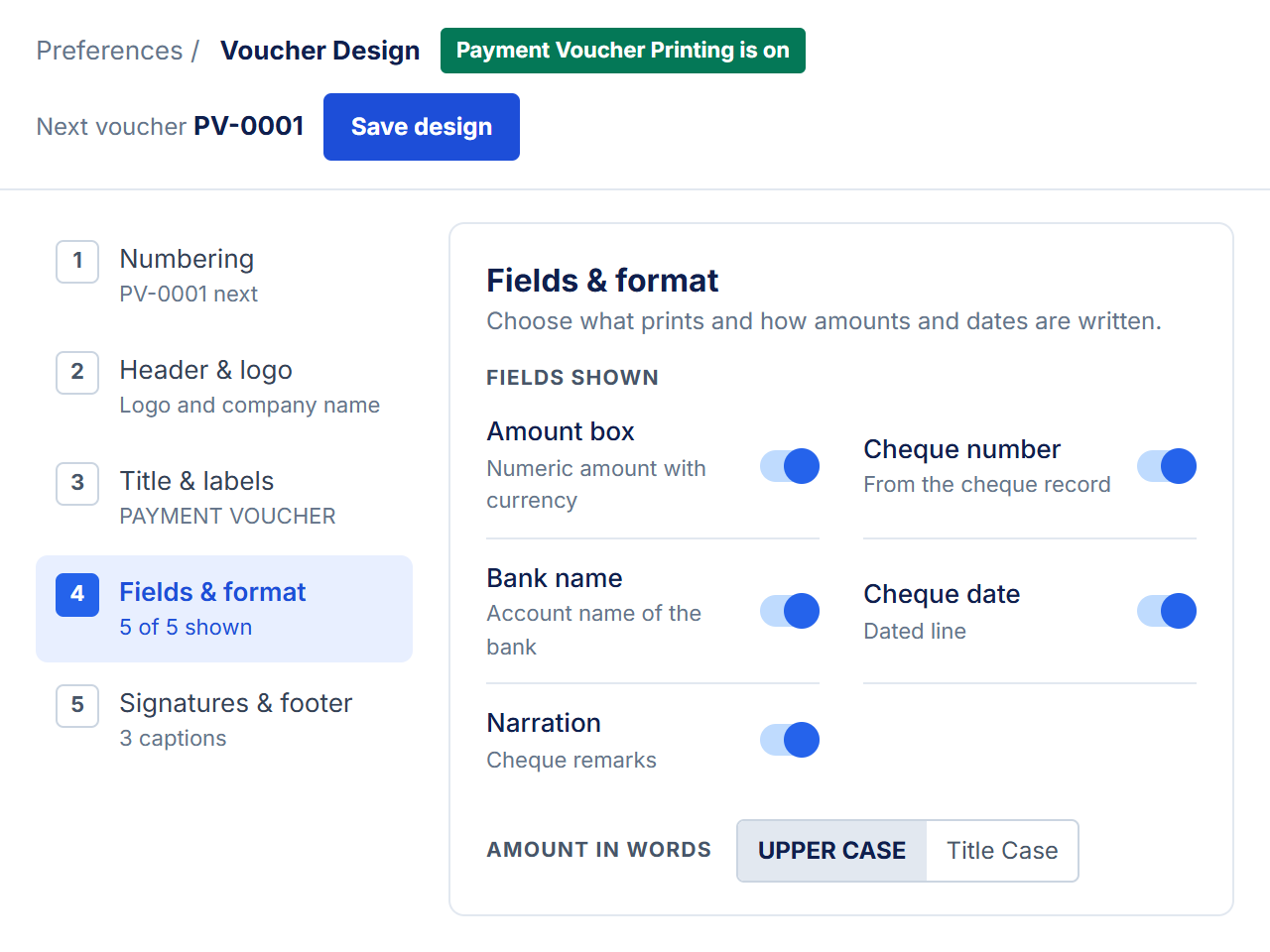
The voucher design screen, shown with sample data.
Customise Your Payment Voucher Format
Set the format up once and every voucher follows it. The voucher designer has five short steps and a live A4 preview, so you see the voucher change as you type.
- 1
Numbering. Choose the prefix and the starting number for your vouchers.
- 2
Header and logo. Add your logo and the company name shown at the top.
- 3
Title and labels. Rename the title and labels such as Paid to, The Sum of and Being.
- 4
Fields and format. Pick which fields print, choose the date format, and write the amount in words in upper case or title case.
- 5
Signatures and footer. Name up to three signature lines for your approval process, and add an optional footer note.
Payment Voucher Numbering You Can Rely On
Voucher numbers are kept in sequence by the system, not by hand.
Assigned on first print
A voucher number is given the first time a voucher is printed for a cheque.
Reused on reprint
Printing the same voucher again keeps its number. One cheque, one voucher number.
Forward only
Once vouchers have been issued, the next number can only be increased.
Cheque status untouched
Printing a voucher never changes the status of the cheque.
Payment Voucher Printing vs Payment Voucher Scanning
EasyCheck has two voucher features, and they work in opposite directions.
Payment voucher printing
Generate a payment voucher from an existing cheque record. Customise the layout, then print or save the PDF.
Payment voucher scanning
Upload an existing voucher to extract details for a cheque. Review the extracted beneficiary, amount and cheque date before printing.
Payment voucher scanningPayment Voucher Printing: Frequently Asked Questions
What is a payment voucher?
A payment voucher is an internal document used to record payment details, including the payee, amount, date, purpose and authorisation. It is kept as the supporting record for the payment. In EasyCheck, it is generated from a cheque record and can include the cheque number, bank, cheque date and signature lines.
Can EasyCheck print a payment voucher for a cheque?
Yes. With Payment Voucher Printing turned on, every cheque in the Print Cheque list has a Print Voucher button. Click it and EasyCheck produces an A4 payment voucher for that cheque as a PDF, ready to print or save.
How do I print a payment voucher in EasyCheck?
Turn on Payment Voucher Printing in Preferences, open the voucher designer and save your design, then go to Print Cheque and click Print Voucher on the cheque. The voucher opens as a PDF.
Can I customise the payment voucher format?
Yes. Customise the built-in A4 layout with your logo, company header, title, field labels, visible fields, date format, up to three signature lines and an optional footer note. Preview the changes before saving.
What details print on the payment voucher?
Your company header and logo, the voucher number and date, the payee, the amount in figures and in words, the cheque number, bank and cheque date, the narration taken from the cheque remarks, and signature lines such as Prepared By, Approved By and Receiver.
How are payment voucher numbers generated?
You set a prefix and a starting number, for example PV-0001. A number is assigned the first time a voucher is printed for a cheque, and the next voucher takes the next number.
Does reprinting a voucher create a new voucher number?
No. A reprint reuses the number already assigned to that cheque, so one cheque always has one voucher number.
Does printing a voucher change the cheque status?
No. Printing a payment voucher is separate from printing the cheque and does not change the cheque status, so you can print the voucher before or after the cheque.
Which EasyCheck plans include payment voucher printing?
All plans: Business, Business Plus and Premium. An Admin turns it on under Preferences, Feature Modules. Plans start from AED 750 as a one-time payment for a 3-year licence.
Is this the same as payment voucher scanning?
No. Payment voucher printing produces a voucher for a cheque you have created. Payment voucher scanning works the other way: it reads a voucher you already have and turns it into a cheque.
Print the cheque and its payment voucher from one system
Book a live demo to see a cheque and its payment voucher printed together.
Or WhatsApp us on +971 58 966 0220