Print Cheques from Payment Vouchers, Without Retyping
Upload a payment voucher and EasyCheck reads the beneficiary, amount and cheque date for you. Check the details, then create and print the cheque on your own cheque book.
- PDF, PNG or JPEG vouchers
- One voucher, or many in a single PDF
- Review and edit before a cheque is created
- Supports all UAE and GCC banks
Included in Business Plus, AED 1,200. One-time payment, 3-year licence. See plans
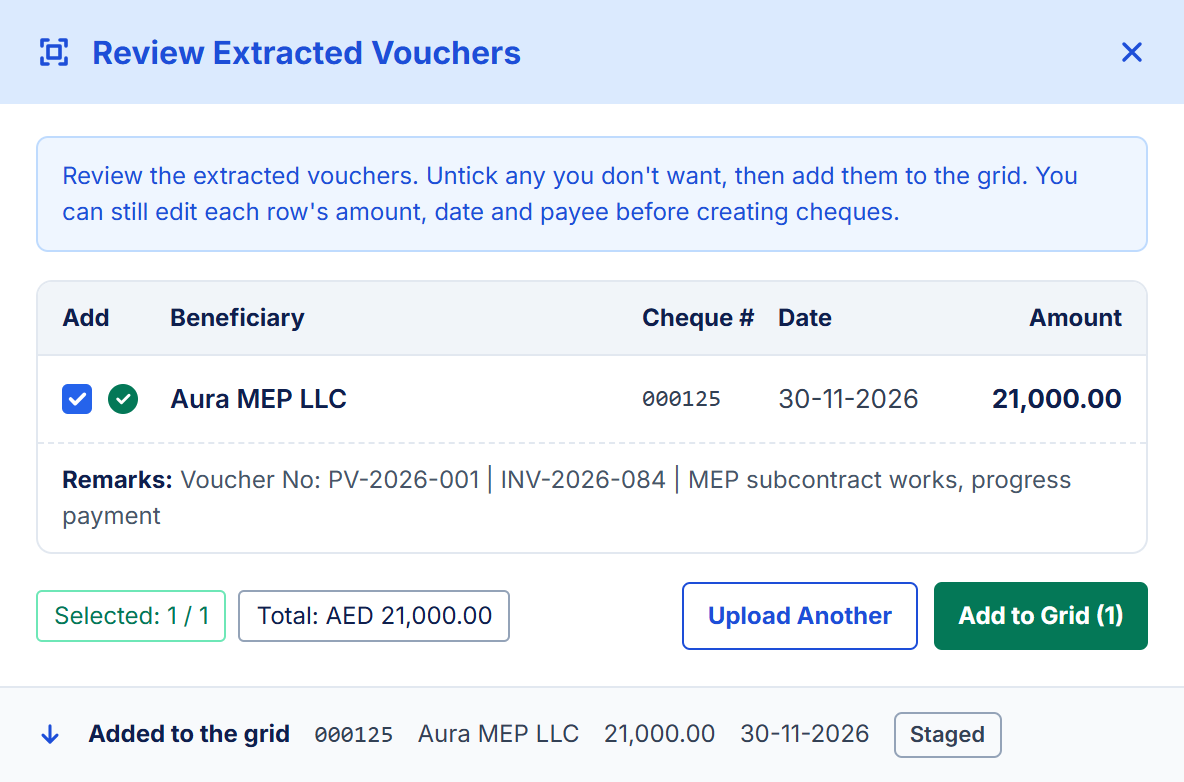
The voucher review screen, shown with sample data.
What Is Payment Voucher Scanning?
Payment voucher scanning turns a payment voucher into a ready-to-print cheque. You upload the voucher as a PDF or image, EasyCheck reads the payment details from it, and each voucher becomes one cheque on the bank account you select. Nothing is retyped, so the cheque matches the voucher it pays.
What EasyCheck reads from a payment voucher
Beneficiary
The payee the cheque is made out to, such as the supplier or "pay to" name on the voucher.
Amount
The amount being paid by the voucher. The amount in words is then written for you on the cheque.
Cheque date
The cheque date shown on the voucher, or the payment date when no cheque date is given.
Remarks
The voucher number, invoice reference or purpose, carried into the cheque remarks.
How to Print a Cheque from a Payment Voucher
Four steps, from the voucher file to the printed cheque.
- 1
Open Bulk Cheques and choose the bank account
The cheques are created on the account you select, using the template you set up from that cheque book.
- 2
Click Scan Voucher and upload the file
Upload a PDF, PNG or JPEG of up to 10 MB. It can be a single voucher or a multi-page PDF with several vouchers.
- 3
Review what was read
Each voucher shows its beneficiary, date and amount. Untick any you do not want. Rows with a missing beneficiary, amount or date are flagged.
- 4
Add to the grid, then create and print
You can still edit the amount, date and payee in the grid. Click Create All, then Print All. Cheque numbers are generated when the cheques are created.
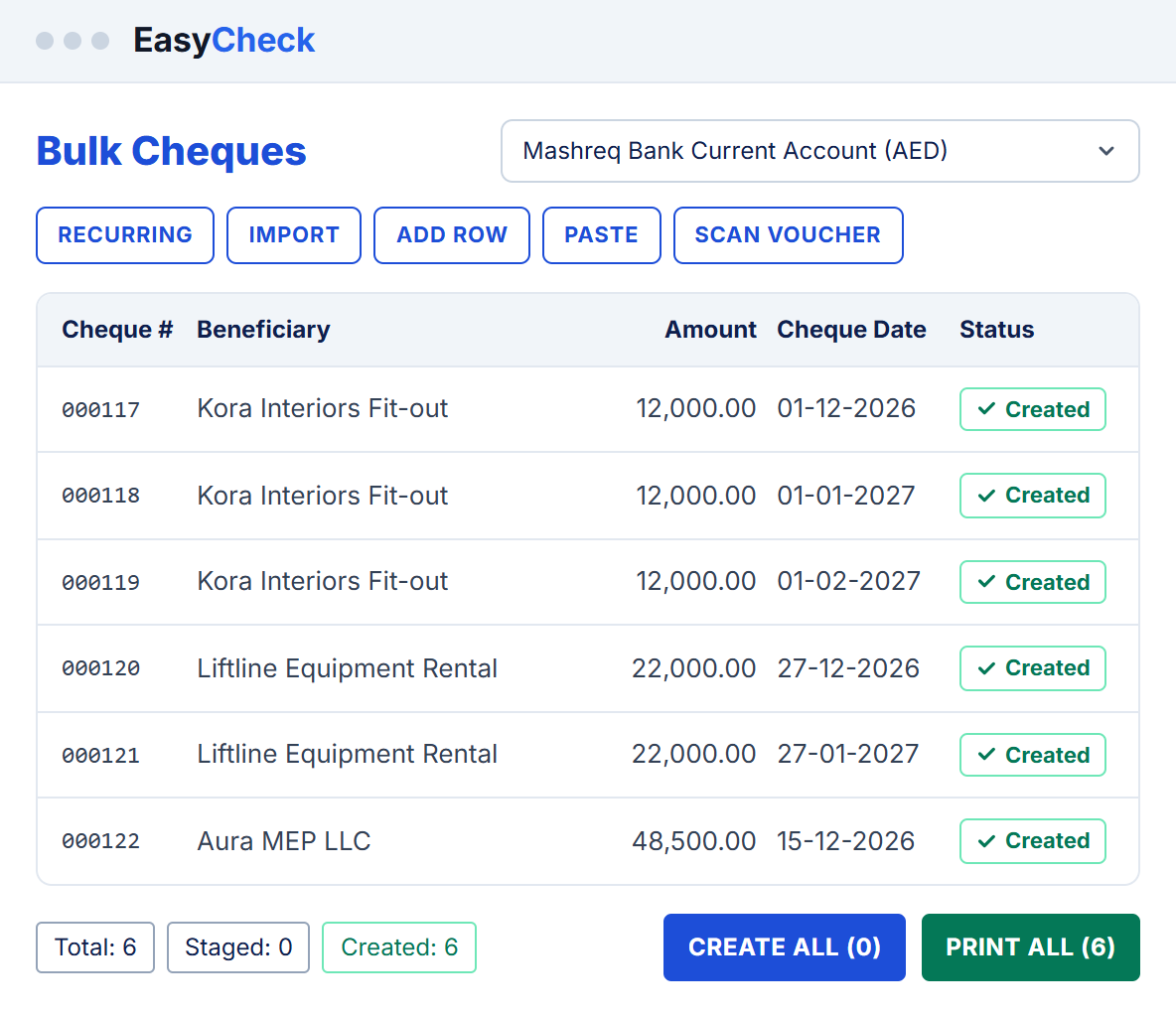
The Bulk Cheques screen, where scanned vouchers land. Shown with sample data.
Why Finance Teams Scan Payment Vouchers Instead of Retyping Them
The voucher already holds everything the cheque needs. Typing it again only adds time and the chance of a mistake.
No retyping
The payee, amount and date come straight from the voucher, so nobody copies them by hand into a cheque screen.
Cheques that match the voucher
The cheque is filled from the voucher it pays, which makes a mistyped payee or amount far less likely.
Faster payment runs
A multi-page PDF of vouchers becomes a batch of cheques from one upload, ready to print together.
Voucher kept with the cheque
PremiumThe scanned voucher is attached to each cheque it produced, so the supporting document stays with the payment.
Supported Payment Voucher Files and Limits
- File types
- PDF, PNG and JPEG
- File size
- Up to 10 MB per upload
- Vouchers per file
- One voucher, or a multi-page PDF with several vouchers
- Result
- One cheque per voucher, on the bank account you select
- Where to find it
- Bulk Cheques, Scan Voucher button
- Plans
- Business Plus and Premium
Voucher Scanning, Excel Import or Zoho Books: Which to Use
EasyCheck has three ways to bring a batch of payments in. All three are on Business Plus and Premium, and voucher scanning needs no accounting software.
Scan a payment voucher
Upload the voucher and EasyCheck reads the details. Best when the voucher is already approved and printed or saved as a PDF.
Import from Excel or paste rows
Bring in a payment run from a spreadsheet. Best when the payments are already listed in Excel.
Bulk cheque printingSync from Zoho Books
Pull payment vouchers from Zoho Books into EasyCheck. Best when Zoho Books is your accounting system.
Zoho Books integrationWhere Payment Voucher Scanning Fits
It suits any business where a cheque follows an approved payment voucher.
Plans with Payment Voucher Scanning
One-time payment for a 3-year licence. No monthly fees and no per-cheque charges.
Business Plus
- Payment voucher scanning
- Bulk cheque printing with Excel import
- Recurring PDC series, up to 120 cheques
- Zoho Books integration
Premium
- Everything in Business Plus
- Scanned voucher attached to each cheque
- Document attachment with 1 TB storage
- Priority 24/7 support
Payment Voucher Scanning: Frequently Asked Questions
What is payment voucher scanning?
Payment voucher scanning turns a payment voucher into a ready-to-print cheque. You upload the voucher as a PDF or image, EasyCheck reads the beneficiary, amount and cheque date from it, and each voucher becomes one cheque on the bank account you select.
How do I print a cheque from a payment voucher?
Open Bulk Cheques, choose the bank account and click Scan Voucher. Upload the voucher, check the details EasyCheck has read, add them to the grid, then click Create All and Print All. The cheque prints on your own cheque book using a standard laser printer.
Which file types can I upload?
PDF, PNG and JPEG files, up to 10 MB per upload. A PDF can hold one voucher or several vouchers on separate pages.
Can I scan several payment vouchers at once?
Yes. Upload a multi-page PDF with several vouchers and each voucher becomes its own cheque. You see them all on one review screen and can untick any you do not want.
What details does EasyCheck read from the voucher?
The beneficiary, the amount being paid and the cheque date. Where the voucher shows them, the voucher number, invoice reference or purpose are carried into the cheque remarks.
Do I need to check the details before printing?
Yes. EasyCheck uses AI to read the voucher, and vouchers differ from company to company, so every scan opens on a review screen first. Rows with a missing beneficiary, amount or date are flagged, and you can edit the amount, date and payee before any cheque is created.
Do I need Zoho Books or other accounting software?
No. Voucher scanning works from the voucher file itself, whichever system produced it. If you do use Zoho Books, EasyCheck also has a separate Zoho Books integration.
Which EasyCheck plan includes payment voucher scanning?
Business Plus (AED 1,200) and Premium (AED 3,000). Both are a one-time payment for a 3-year licence. It is part of the Bulk Cheques module, so it is not in the Business plan.
Is the scanned voucher kept with the cheque?
On the Premium plan, yes. The voucher you scanned is attached to each cheque it produced, so the supporting document sits with the payment record.
Turn payment vouchers into printed cheques
Book a live demo to see a payment voucher scanned, reviewed and printed as a cheque.
Or WhatsApp us on +971 58 966 0220